
GFPGAN tutorial · Images & video
Restore faces in your own images and video.
Use the same documented workflow on a sample and on your footage. GFPGAN reconstructs detected faces; FFmpeg handles the video frames and audio. You keep the source and write a separate result.
Free guide and MIT-licensed wrapper code · Sample footage and upstream model terms are separate · Current recipe uses GFPGAN v1.4
Start with a copy and a small test. Generative face restoration can alter appearance. Keep originals, review expressions and motion, and label enhanced outputs. The older showcase renders have unrecorded settings; this tutorial describes a separate current recipe.
Beginner path
Use a notebook if you prefer guided cells.
Download the notebook, open Google Colab, and choose File → Upload notebook. Follow the setup, sample image, your image and short-video cells in order. The notebook downloads the same starter kit used below.
- Use the supplied image first so you can see the output and processing record.
- Upload an image or a short progressive SDR clip you have permission to process.
- Run the restoration cells and download the result before the notebook session ends.
- For larger batches, move to the local workflow after the short test succeeds.
A Colab provider account may be required. Hosted compute availability and its installed Python version can change. The release verification record identifies the environment actually tested; GPU and hosted-notebook performance are not implied by a CPU test.
Local path
Set up the pinned environment.
The reference setup uses Linux, Python 3.11 and FFmpeg/ffprobe on your PATH. Windows users can use WSL2 with those tools installed, or the notebook. The local shell commands below are for Linux/WSL2.
Check the tools.
python3.11 --version
ffmpeg -version
ffprobe -version
Install Python 3.11, FFmpeg and unzip through your operating system if they are missing. The bootstrap creates a dedicated virtual environment, downloads a pinned upstream GFPGAN source revision, and checks the model download against its recorded SHA-256. It keeps its files in the kit directory.
Download and install the starter kit.
curl -fL https://stockfilm.com/research/ai-restoration/assets/stockfilm-gfpgan-starter.zip -o stockfilm-gfpgan-starter.zip
unzip stockfilm-gfpgan-starter.zip
cd stockfilm-gfpgan-starter
bash setup.sh cpu
The CPU recipe runs without an NVIDIA GPU. Face restoration on every video frame is much slower on CPU; begin with the two-second sample. The README describes supported device options and exact package versions.
The model weights and packages are external downloads. Read the GFPGAN notices and the kit’s THIRD-PARTY-NOTICES.md before using or distributing them.
First result
Restore a face in an image.
Run the supplied input.
curl -fL https://stockfilm.com/research/ai-restoration/assets/sample-image.png -o sample-image.png
.venv/bin/python restore.py image sample-image.png --output runs/image-v14
The 640×360 sample is taken from the Harrisburg experiment input. The recipe works at the existing canvas size with background enhancement off. It writes restored output and a run record into the new directory you chose.
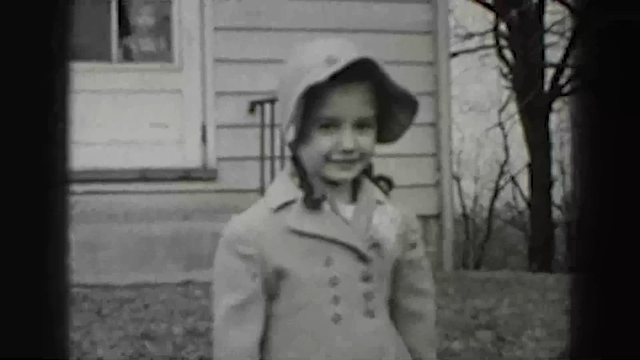
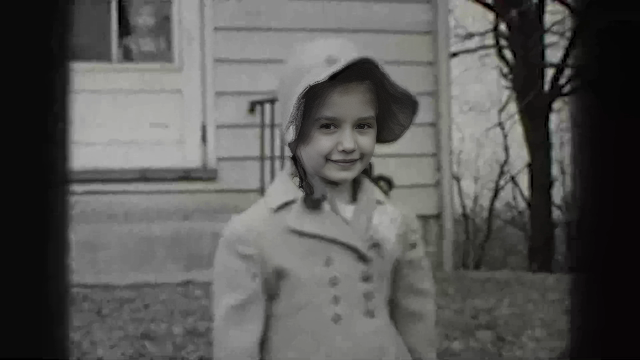
Try your own image.
.venv/bin/python restore.py image /path/to/your-image.jpg --output runs/my-imageReplace the example path with your file. Use a fresh output directory for each experiment. Compare the whole image, then inspect the face at 100%: eyes, teeth, apparent age, expression and the boundary where the face meets the source.
For whole-picture enhancement, evaluate Real-ESRGAN as a separate operation. It changes the background too, so record that step and avoid silently upscaling the same file twice.
Frames, timing and audio
Try a short video before a full reel.
Check and process the sample clip.
curl -fL https://stockfilm.com/research/ai-restoration/assets/sample-video.mp4 -o sample-video.mp4
.venv/bin/python restore.py preflight sample-video.mp4
.venv/bin/python restore.py video sample-video.mp4 --output runs/video-v14
The sample has 60 frames at 30000/1001 fps, runs approximately two seconds and is silent. It tests image-sequence processing and reassembly. The comparison wipes on the showcase are separate historical renders at 20 fps.
Check your footage and restore it.
.venv/bin/python restore.py preflight /path/to/your-clip.mp4
.venv/bin/python restore.py video /path/to/your-clip.mp4 --output runs/my-video
Preflight checks the clip before loading the model. The first recipe supports progressive, square-pixel, normally oriented, 8-bit SDR constant-frame-rate footage with aligned starts. VFR, interlaced, HDR/log, rotated or offset-audio sources need an explicitly prepared working copy rather than an unnoticed conversion.
- Probe format, timing, frame count and audio.
- Extract ordered frames and restore detected faces.
- Check that every frame produced a result.
- Reassemble at the exact rational rate and handle audio.
- Validate the output and record the run.
Video processing uses scratch frames as well as model outputs, so reserve disk space. The wrapper documents what happens to audio, no-face frames and rejected inputs. Keep the input and result side by side when evaluating motion.
Decide whether the result helps your footage.
Inspect the image
- Full-frame color, grain and texture.
- Eyes, teeth, hair and apparent age at native size.
- Face edges, skin smoothing and fine generated features.
Watch the motion
- Features changing between neighboring frames.
- Doubled outlines, ghosting or sudden softness.
- Profile changes, occlusion and missed detections.
A sharper result is not proof that the historical detail is correct. Frame-based restoration does not guarantee temporal consistency. Some of the supplied historical examples demonstrate exactly these limits.
Return to the comparison collection →Troubleshooting
The install fails with a TorchVision or NumPy error.
Use the pinned Python 3.11 recipe in a fresh kit directory and virtual environment. BasicSR 1.4.2 expects an older TorchVision API; mixing current package releases into this recipe can break it. Follow the dependency lock instead of upgrading packages independently.
No face was detected, or a face looks wrong.
Small faces, profiles, occlusion and blur are difficult inputs. Inspect the detection and preserved frame, and keep the source. Try a larger, clearer input when available; magnifying a tiny face does not provide missing historical evidence.
The video is rejected by preflight.
Read the reported reason. Constant-frame-rate timing, progressive frames, normal orientation, SDR color and aligned stream starts are the supported first path. Make a separate documented working copy in your editor before trying again. Preserve the original.
Video processing is slow or runs out of memory.
Try a shorter clip and the CPU device first if GPU memory is limited. The per-frame model also needs disk space for extracted and restored frames. Use the measured verification record as a small-test result, not a throughput promise for a full reel.
Can I change the restoration strength?
Check the wrapper’s documented options. Upstream GFPGAN v1.3/v1.4 does not implement its CLI weight argument as an image-strength blend. Any blend must be explicit and recorded; CodeFormer’s fidelity weight has different semantics.
Can I overwrite the input or treat this as preservation restoration?
The starter kit writes into a new output directory. Keep its run manifest with the source. These are generative experiments; use Stockfilm’s archive methodology and integrity policy to understand the separate production preservation workflow.
Recipe and evidence
Keep the versions with the output.
| Record | What this release provides |
|---|---|
| Model | GFPGAN v1.4 checkpoint, download URL and SHA-256; pinned upstream software revision. |
| Environment | Python 3.11, PyTorch 2.1.2 and TorchVision 0.16.2 CPU reference recipe, with dependency lock. |
| Operation | Whole-image face reconstruction at existing size, background enhancement off; deliberate frame/audio handling for supported video. |
| Evidence | Image and short-video verification, source/output hashes, actual device and test scope in the release record. |
| Limits | Historical examples do not establish their checkpoint or settings. CPU checks do not establish GPU or hosted-notebook performance. |
The Stockfilm wrapper is MIT licensed. Upstream code, model checkpoints and dependencies retain their respective terms. Tutorial sample media is provided for following this workflow; production reuse requires the appropriate footage license. No Stockfilm account is required to read the guide or download the files.
Stockfilm Research · Published 2026-10-07 · AI Restoration Research